
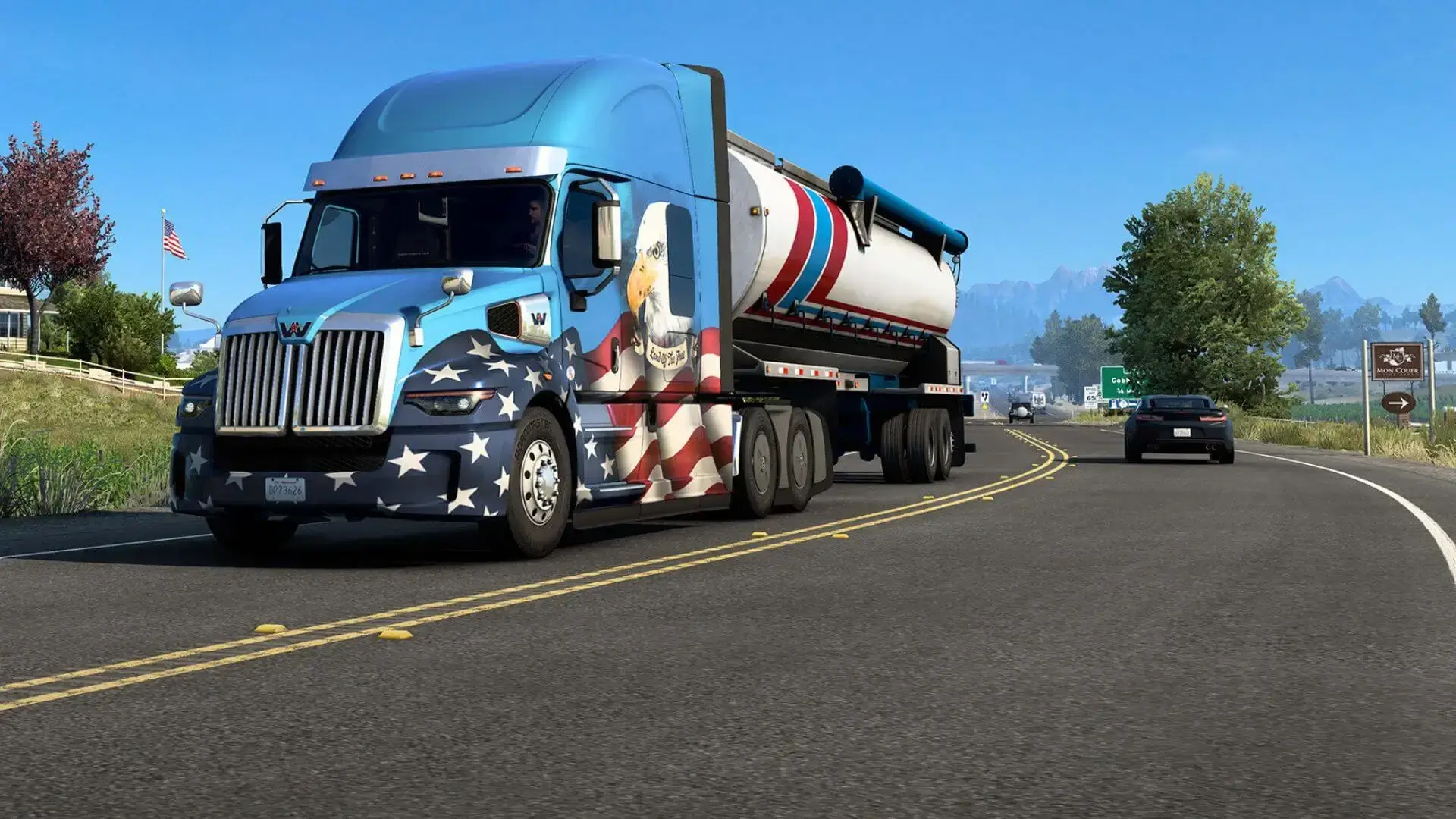
At Game Host Bros, we make it easy to adjust max players. Here's how you can easily adjust player slots on your new American Truck Simulator server to get all of your friends together on the road!
Setting Max Players
- 1Log in to Bropanel and select your server.
- 2In the sidebar, go to
Settings - 3Edit
Max Players. - 4Click
Save & Restartto apply your changes.
Danger
For player counts above 8, you MUST modify your local game config files; otherwise, you won't be able to see your server in the browser. How to do that can be found in the section below.
More Than 8 Players - 128 Players ATS Convoy
If you want to have more than 8 players on your ATS server, every player MUST modify their local game files to allow for higher player count servers; otherwise, they won't be able to see or join your server. Here's how that's done:
These steps are to be followed after changing Max Players in Settings and restarting your server in the steps above.
Windows PC
- 1Close your ATS Game.
- 2Press
Windows Key + Rand paste this command.%USERPROFILE%\Documents\American Truck Simulator - 3Edit
config.cfgwith notepad. - 4Press
Ctrl + Fto finduset g_max_convoy_sizeand change its value to 128. It should now look like this:- uset g_max_convoy_size "128"
- 5Save your changes and start ATS.