
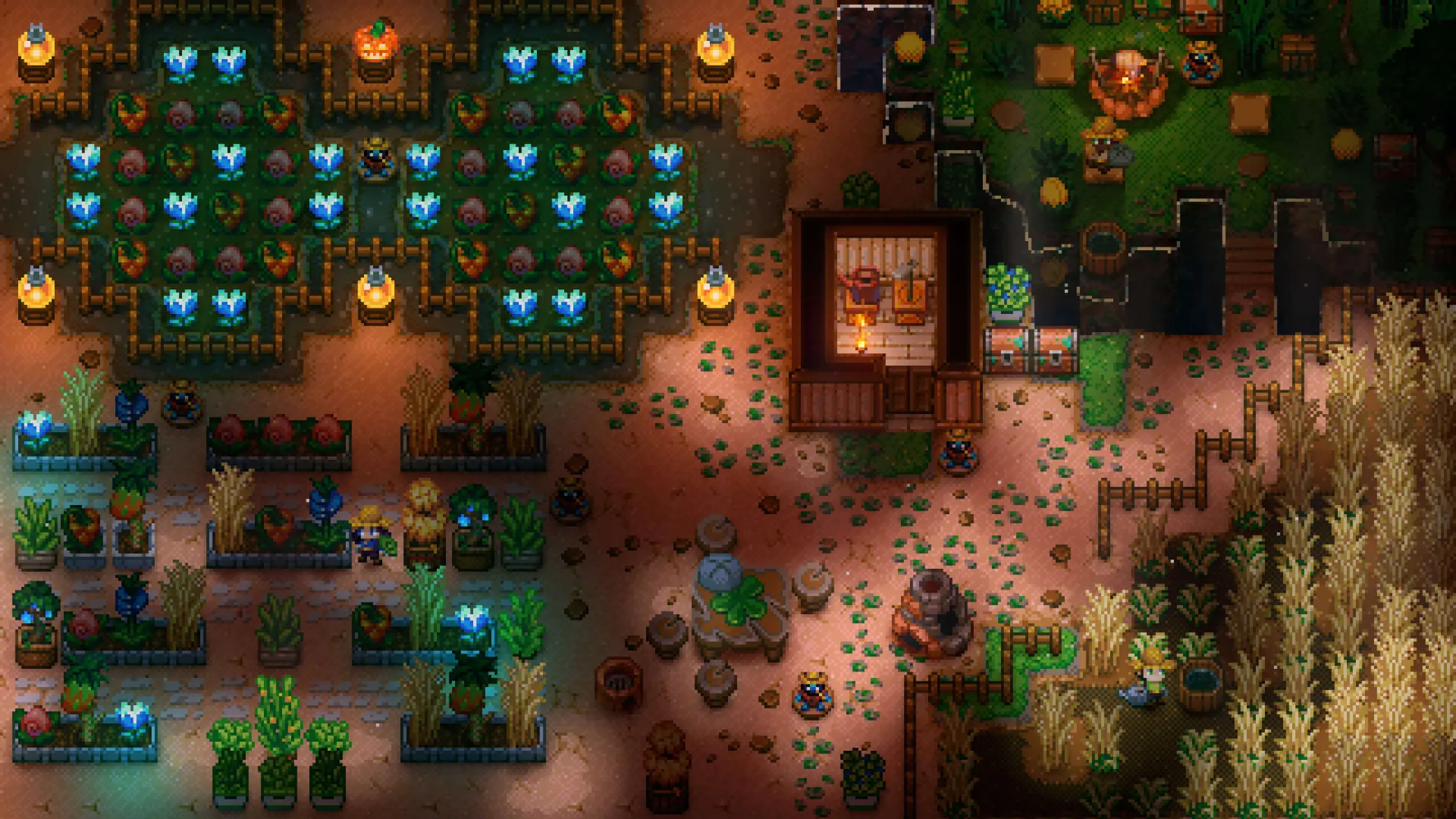
In this tutorial, we will guide you through the process of uploading an existing world and player save file to your Core Keeper dedicated server.
You may also refer to this guide on how to upload files to your game server.
If you get stuck at any time, Game Host Bros offers free world transfers. Just reach out to a bro on Discord.
Danger
This will delete or overwrite any progress you have made on the server.
Locating Your Local Core Keeper Save File
- 1Press
Windows Key + R. - 2Enter this and click OK:
%USERPROFILE%\AppData\LocalLow\Pugstorm\Core Keeper\Steam\ - 3Enter the folder with random numbers and then find your world in
worlds.
AppData
LocalLow
Pugstorm
Core Keeper
Steam
156xxxx
worlds
0.world.gzip
Tip
It usually has the name 0.world.gzip if you only have one world.
Upload Your Core Keeper Save to Your Server
- 1Log in to Bropanel and stop your Core Keeper server.
- 2In the sidebar, go to
Files. - 3Navigate to
/.config/unity3d/Pugstorm/CoreKeeper/DedicatedServer/worlds. - 4Upload your local save file, replacing any files if necessary.
- 5In the sidebar, go to
Settingsand ensureWorld Indexmatches the number of your uploaded world file. - 6Start your Core Keeper server.
This is what your server should now look like:
.config
unity3d
Pugstorm
CoreKeeper
DedicatedServer
worlds
0.world.gzipYour uploaded world.