
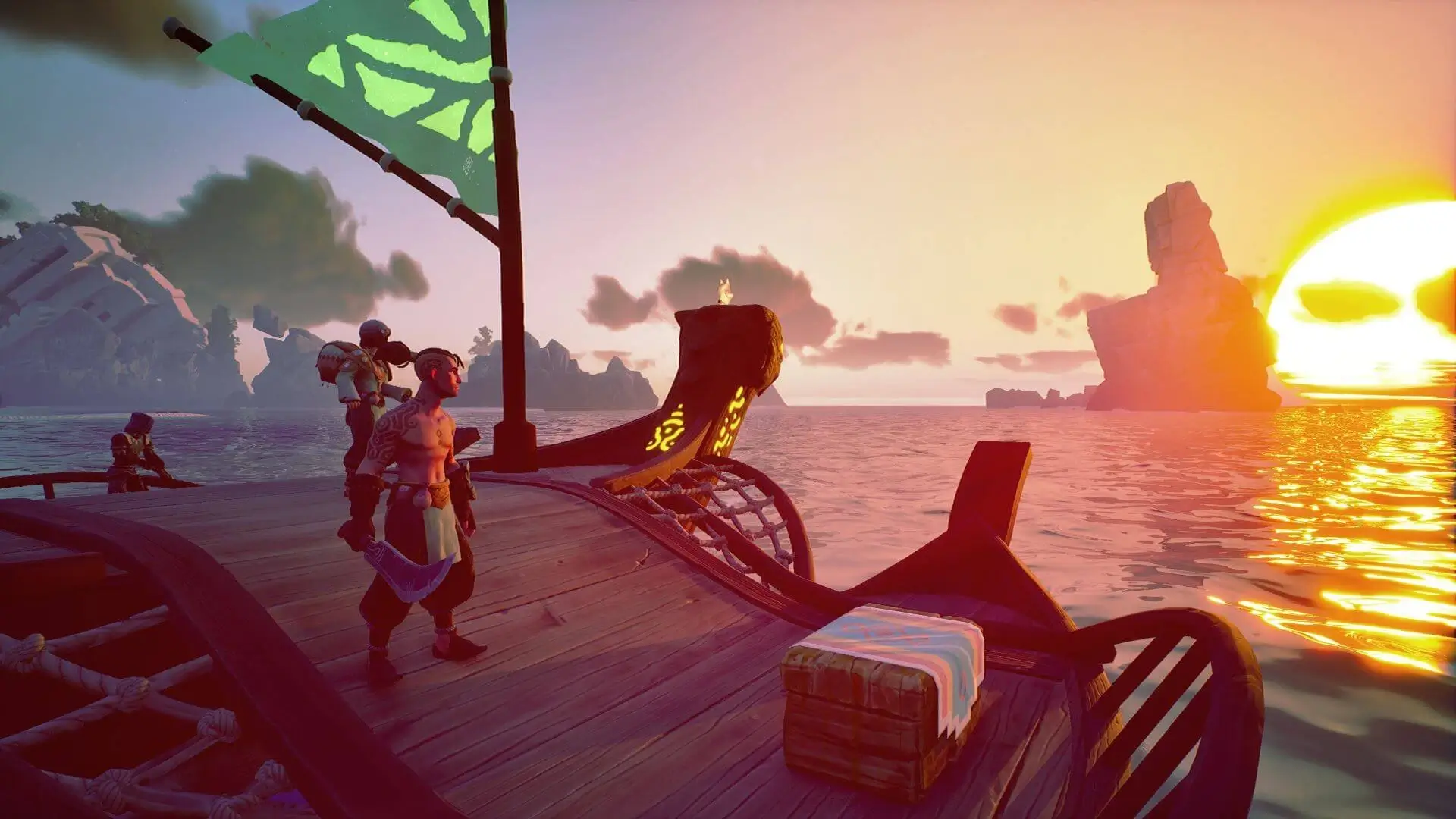
This tutorial will guide you through the process of uploading an existing world and player save file to your Voyagers of Nera dedicated server.
You may also refer to this guide on how to upload files to your game server.
If you're migrating over and need any assistance, Game Host Bros offers free server transfers. Just reach out to a bro on Discord.
Danger
This will delete or overwrite any progress you have made on the server.
Locating Your Existing Save Files
To start, we first need to locate the existing save file on your local PC and note the SaveID.
- 1Launch Voyagers of Nera and press the
START GAMEbutton. - 2Click on the save file you want to transfer.
- 3Note down the
Server IDshown on the right side of the screen (e.g.,DCB5A754444592DB551596B15FF278D8). - 4On your keyboard, press
Windows Key + Rand enter this:%LOCALAPPDATA%\BoatGame\Saved\PersistedData\nera - 5Find the folder that matches your Server ID from step 3.
- 6Copy your entire save entire folder.
AppData
Local
BoatGame
Saved
PersistedData
nera
DCB5A754444592DB551596B15FF278D8This is your save folder (example ID)
Uploading Your Save to Your Server
Once complete, your server files should now look like this:
BoatGame
Saved
PersistedData
DCB5A754444592DB551596B15FF278D8Your uploaded save folder
CustomConfig