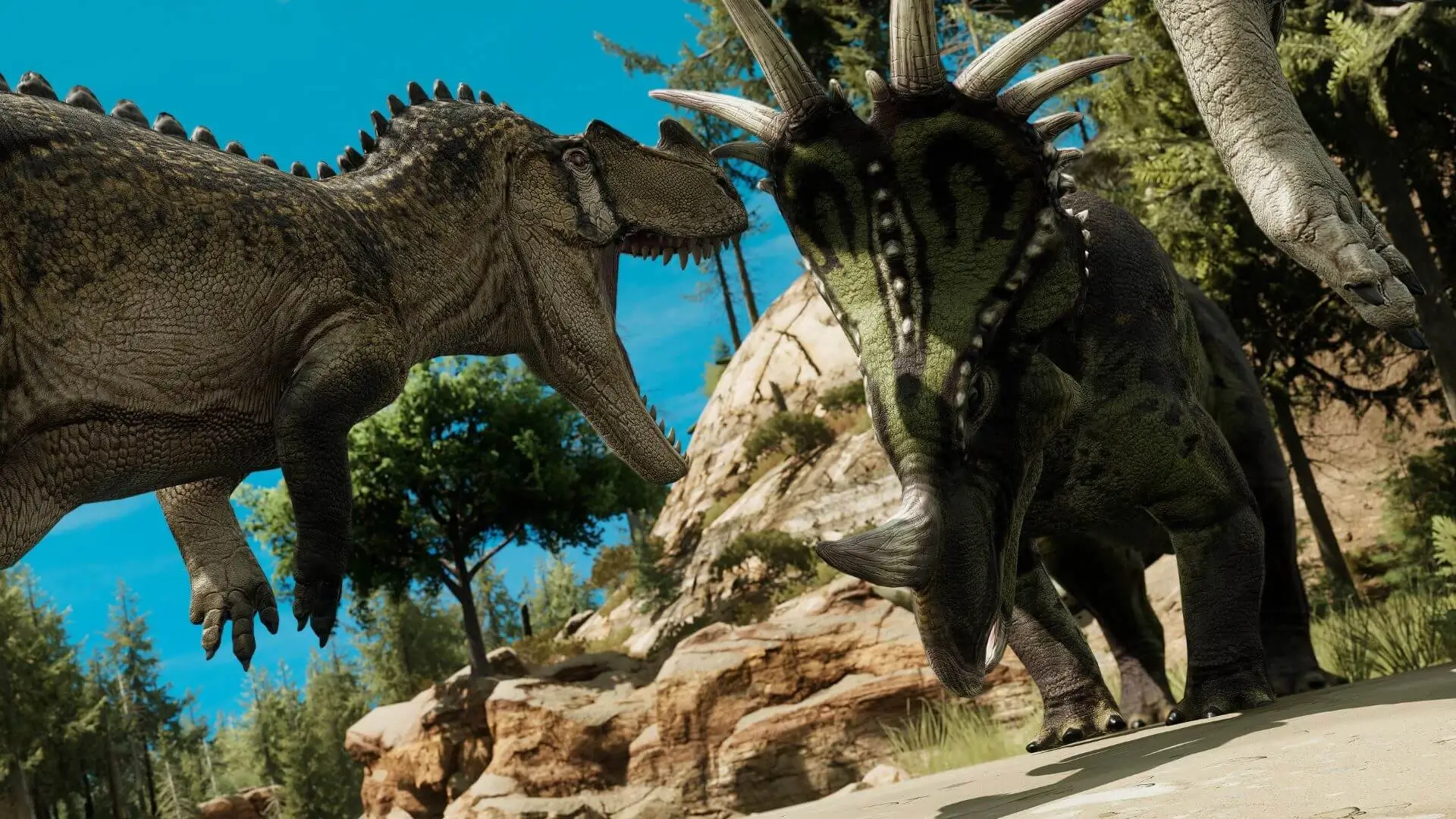
Path of Titans mods add new creatures, skins, Creator Mode items and maps. On your Path of Titans server you add mods by Mod ID in our game panel, and the server downloads them for you.
Finding Mod IDs
- 1Open Path of Titans and click
Modson the main menu. - 2Select the mod you want.
- 3Copy the code shown in the mod's
Mod IDsection. It looks likeUGC_M_DYV7XYEGX2_SK.
Adding Mods to Your Server
- 1Log in to Bropanel and select your server.
- 2In the sidebar, go to
Settings. - 3Find
[Mods] Mod IDand enter your Mod IDs. Separate multiple mods with a comma, like this:UGC_M_DYV7XYEGX2_SK,UGC_M_DYV0XMY7GX_SK - 4Click
Save & Restartto apply your changes.
Each time your server starts, it checks that it has the latest version of every mod in the list. Players who join download the mods they need automatically. In the community server browser, players can click Details to see which mods your server runs.
Note
Our panel writes your Mod IDs to GameUserSettings.ini every time the server starts, replacing anything in its [PathOfTitans.Mods] section. Always add or remove mods using [Mods] Mod ID rather than editing that file.
Which Mods Can Run Together?
- Skin, Creator Mode item and creature mods can be stacked.
- Stat change mods can be stacked as long as they don't edit the same creatures.
- Only one map mod can run at a time.
Caution
Not every mod supports every platform. Many map mods don't run on mobile, so mobile players may not be able to join a server that uses them. Check with the mod author if you're unsure.
To remove a mod, delete its ID from [Mods] Mod ID and click Save & Restart. Mod details are based on Alderon Games' mod setup documentation.