
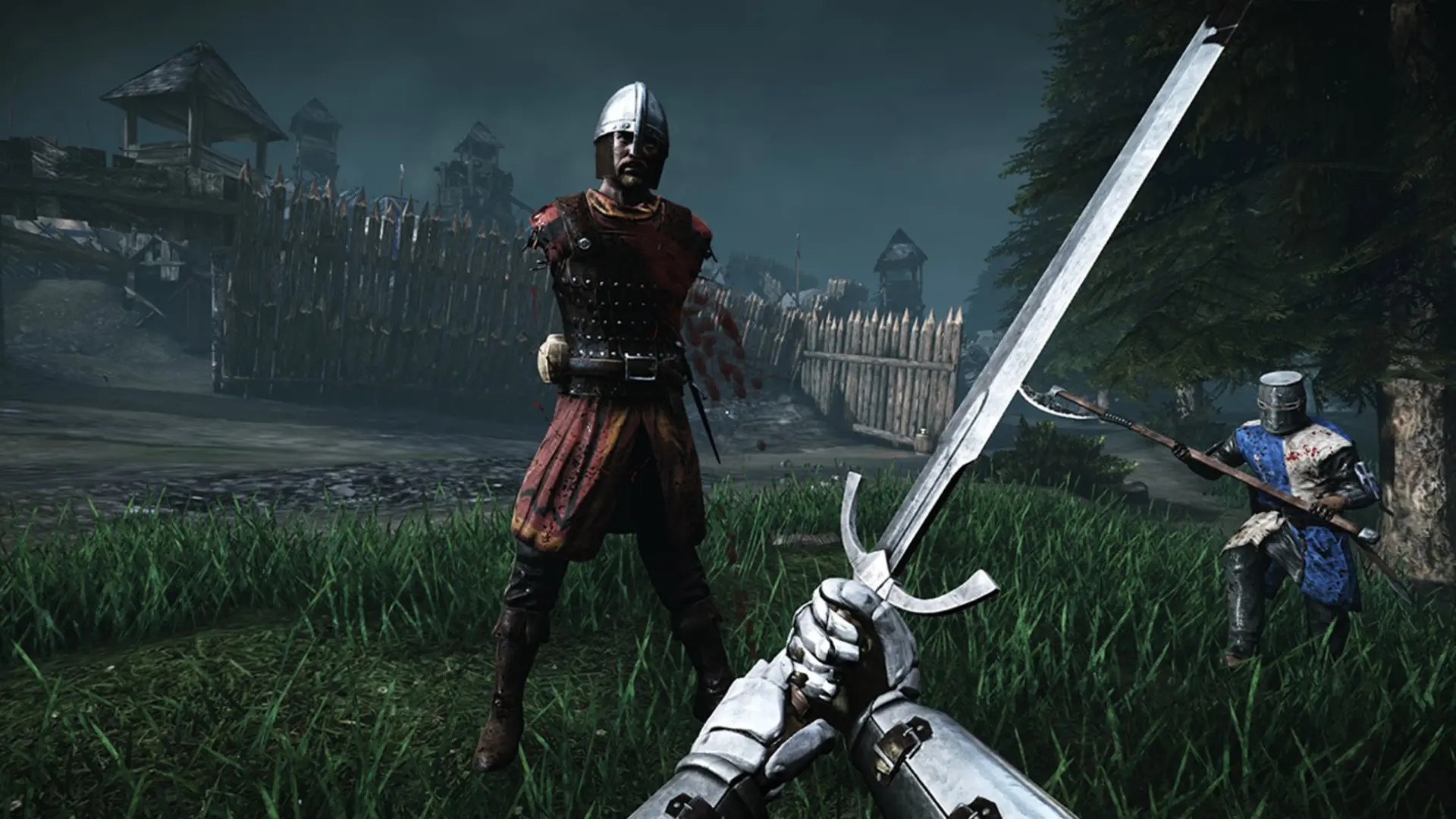
Your Chivalry: Medieval Warfare server moves to the next map in its rotation when a match ends. The rotation lives in the server's config file, so you can pick exactly which maps and game modes come up.
Editing The Map Rotation
- 1Log in to Bropanel and
Stopyour server. - 2In the sidebar, go to
Files. - 3Open
UDKGame/Config/Server/PCServer-UDKGame.ini. - 4Find the
[AOC.AOCGame]section and edit theMaplistlines, one map per line in the order you want them played:Maplist=AOCTO-Hillside_P Maplist=AOCLTS-Arena3_P Maplist=AOCFFA-Moor_P - 5Save the file and start your server.
Add a Maplist= line for each map you want, and delete any you no longer want. The map prefix sets the game mode, see Change Map for the list.
Tip
The server starts on the Map from Settings, then follows this rotation. Put the same map first in the rotation to keep the order predictable.