
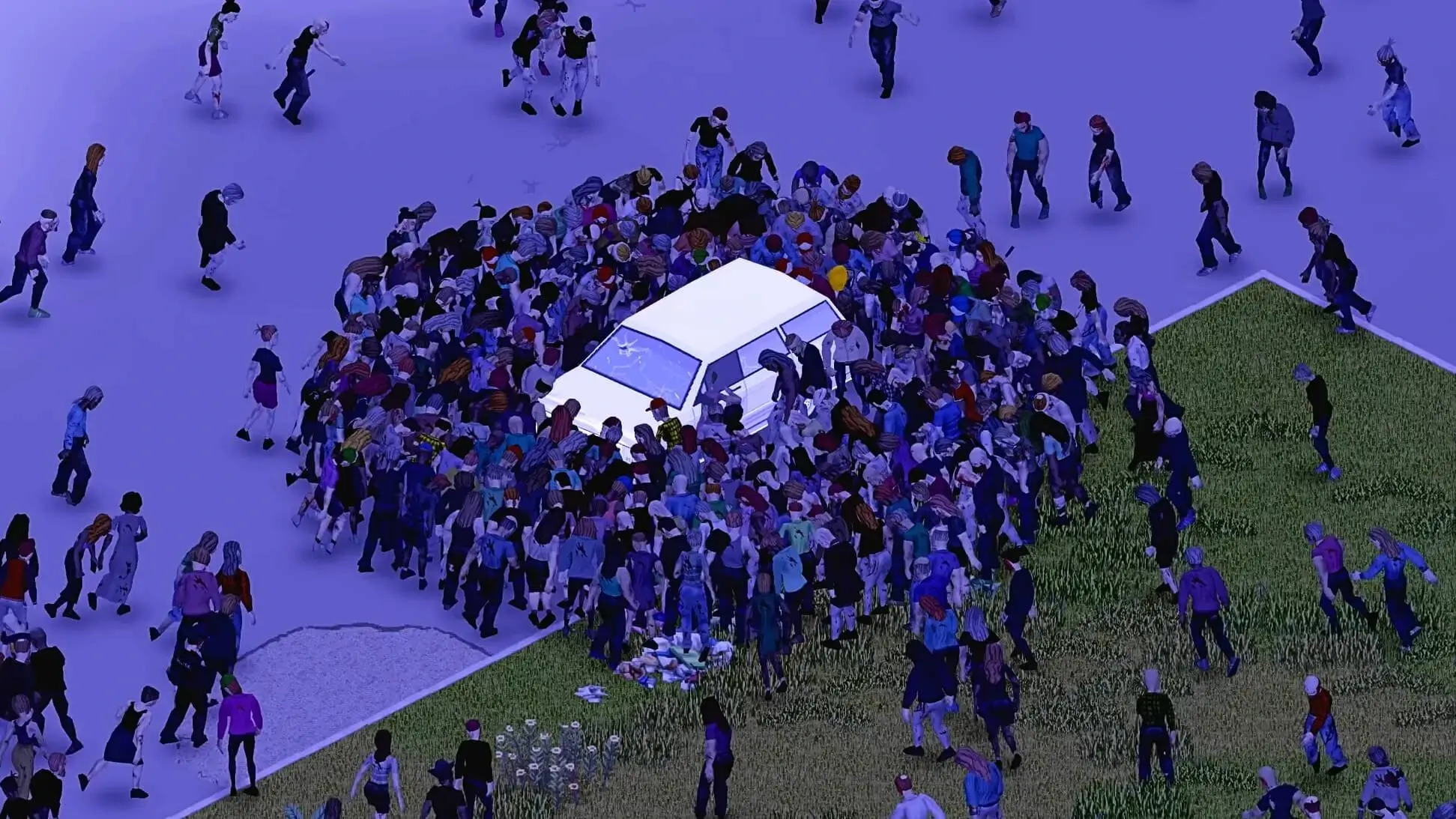
In this guide, we will show you how to edit every setting on your Project Zomboid server, including sandbox settings for gameplay mechanics like loot spawns, zombie behavior, and difficulty.
Basic Server Configuration
Basic settings such as Server Password, Server Name and more can be configured directly in our game panel, here are the steps for basic configuration:
- 1Log in to Bropanel and select your server.
- 2In the sidebar, go to
Settings. - 3Edit the setting you want to change.
- 4Click
Save & Restartto apply your changes.
Using The Configuration File
- 1Log in to Bropanel and
Stopyour server. - 2In the sidebar, go to
Files, navigate to.cache/Server/, and openpzserver.ini. - 3Make the changes you want and then restart the server.
Tip
If the settings exist in Settings, then they will override what is in the configuration file.
Configuring Sandbox Settings
Sandbox settings control various gameplay mechanics such as loot spawns, zombie behavior, zombie spawns, player stats, weather, and much more. These settings allow you to customize your server's difficulty and gameplay experience.
- 1Log in to Bropanel and
Stopyour server. - 2In the sidebar, go to
Filesand open.cache/Server/pzserver_SandboxVars.lua. - 3Edit the settings you want to change. Each setting has comments with their valid values.
- 4Save the file and start your server.
Tip
Some changes will only take effect after a server restart.
Always make a backup of your pzserver_SandboxVars.lua file before making changes, so you can easily revert if needed.
Troubleshooting Sandbox Settings
If your changes aren't applying make sure your changes are being saved, if the issue persists consider the following:
Caution
Invalid Values: Values may be invalid or formatted incorrectly. Double-check the sandbox file for the correct format and valid options listed for each setting.
Corrupted Files (B41 Legacy): Your save may be corrupted. Stop your server, go to Files, and delete the map_sand.bin file in your save folder located at .cache/Saves/Multiplayer/pzserver/map_sand.bin.
Mod Conflicts: There may be a mod-related issue, ensure that you don't have any mods overriding specific sandbox settings.
Reset Your Server: If you need to start fresh, follow our guide to reset your Project Zomboid Server.