
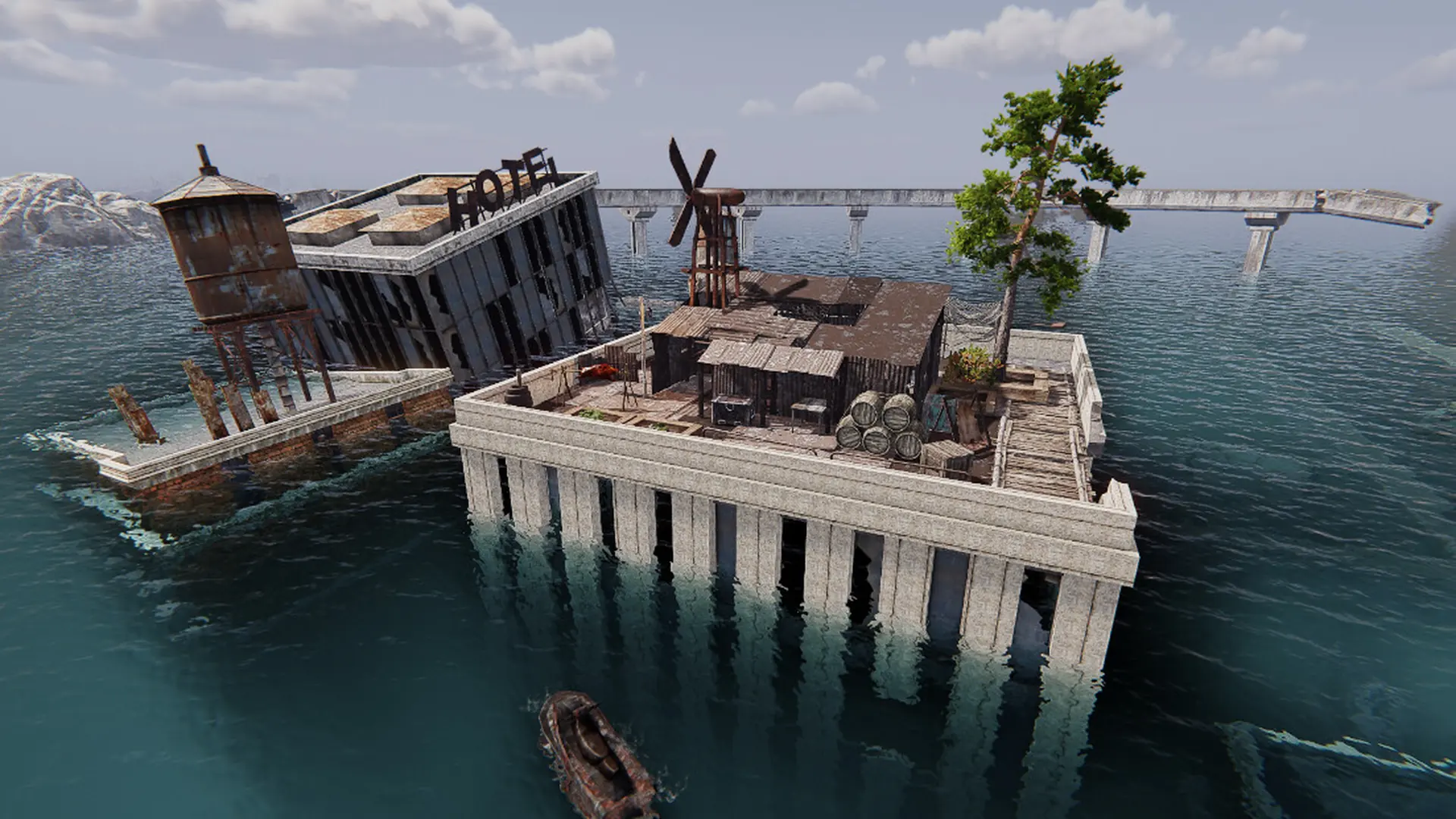
Here is how to move a world you played on your own PC to your Sunkenland server, so your group can keep going right where you left off. This is also how you pick world settings such as difficulty and raids: create a world with the settings you want in the game, then upload it.
If you get stuck at any time, Game Host Bros offers free world transfers. Just reach out to a bro on Discord.
Danger
Always create a backup of your world before moving or copying it.
Locating Your Sunkenland World
Sunkenland keeps each world in a folder named after the world, a ~, and the world's ID, for example My World~11223344-5566-7788-99aa-bbccddeeff00. The part after the ~ is the world ID; you need it later.
- 1Press
Windows Key + Ron your keyboard. - 2Copy and paste this, then press
Enter:%USERPROFILE%\AppData\LocalLow\Vector3 Studio\Sunkenland - 3Open
SteamCloudData, then the folder named after your Steam ID, thenWorlds. If there is noSteamCloudDatafolder, openWorldsdirectly. - 4Find the folder of the world you want to upload and note down the world ID after the
~.
Uploading Your World To Your Server
- 1Log in to Bropanel and
Stopyour Sunkenland server. - 2In the sidebar, go to
Files. - 3Navigate to
.wine/drive_c/users/container/AppData/LocalLow/Vector3 Studio/Sunkenland/Worlds/. - 4Upload your world folder there, keeping its name the same.
- 5In the sidebar, go to
Settingsand, underAdvanced, setWorld IDto your world ID, for example11223344-5566-7788-99aa-bbccddeeff00. - 6Click
Save & Restartto apply your changes.
Tip
The Worlds folder is also in the pinned files of your server's Files page.
Note
Your server renames the world folder to your server name when it starts, because that folder name is the name players see in the server list. Don't change the world ID after the ~: players' characters are saved on their own PCs and linked to it.
The world must come from the same Sunkenland version as the server, or an older one from 0.5 on. If the console says the world was saved by a version the server can't load, keep Auto Update on and restart.