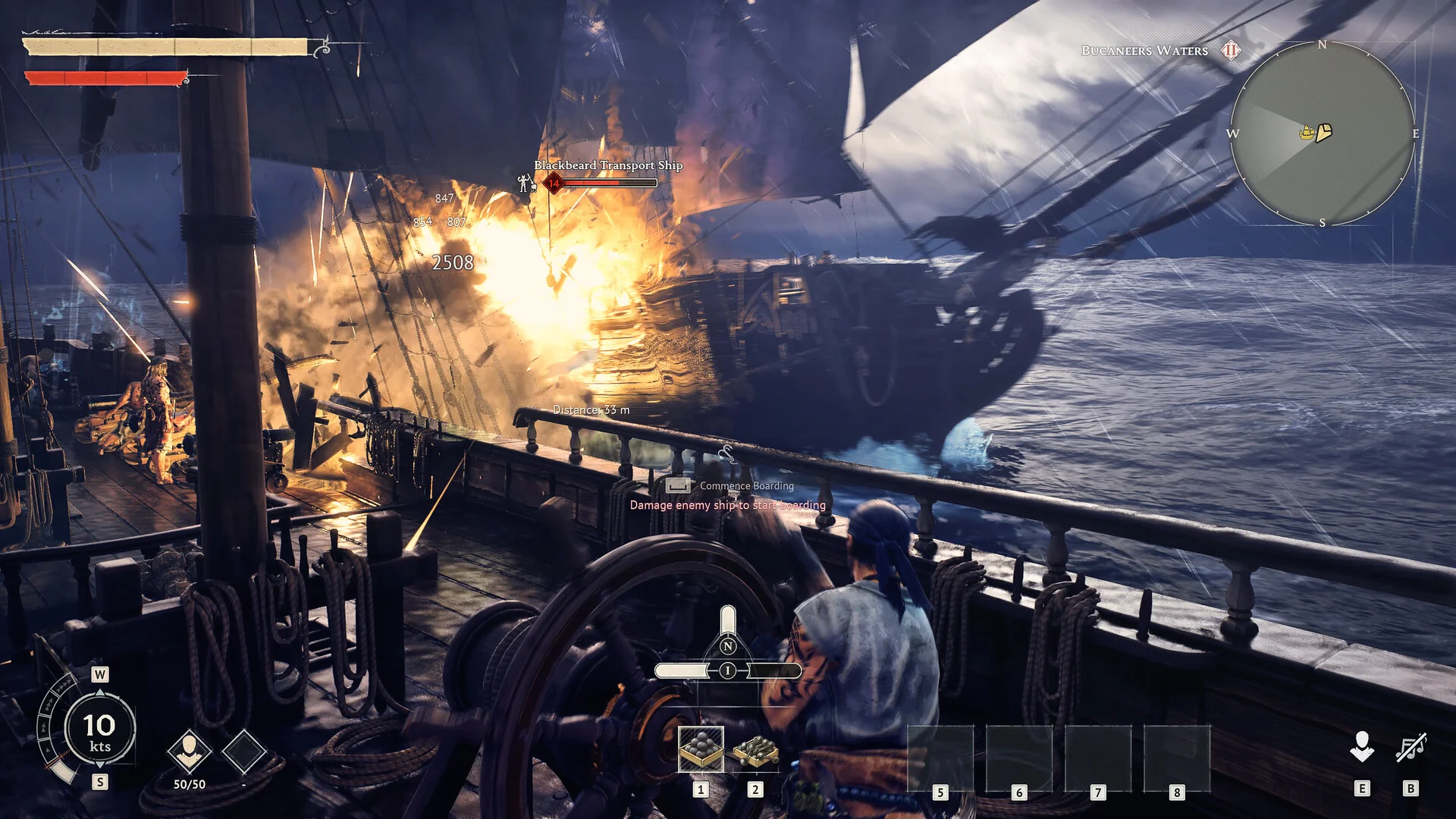
Here are common Windrose server issues and how to fix them. Some of the troubleshooting steps below are officially recommended by the Windrose developers.
Can't Find Server By Invite Code
If your server isn't appearing when you enter your invite code under Play > Connect to Server, work through the steps below.
Quick Tests
- 1Restart Windrose and Steam.
- 2Restart your router and PC
- 3Disable any active VPN. (Alternatively try using mobile data or a VPN: https://one.one.one.one/)
- 4Temporarily disable your antivirus and firewall.
Verify The Server Is Online
Before going further, double-check that your server is actually online:
- Log in to Bropanel to confirm the server status.
- Make sure your game client and server are running the same version. If a game update has released, update your server to match.
Confirm Your Invite Code
- 1Log in to Bropanel and select your server.
- 2On the
Overviewpage, check theInvite codeunder the server address and make sure it matches what you're entering in-game. No invite code is shown while Direct IP Connections are enabled, because your server then uses its IP instead. - 3If manually specified, restart your server and make sure the
Server Invite Codefield inSettingsmatches what you're entering in-game. Codes are case-sensitive and must be 8 characters long.
Allow Windrose Through Your Firewall
If disabling your firewall in the Quick Tests fixed the issue, add Windrose as an exception rather than leaving your firewall off.
- 1Search for
Windows Defender Firewallin the Start menu. - 2Click
Allow an app through firewall. - 3Click
Allow another appand browse to your Windrose installation. - 4Make sure both
PrivateandPublicare checked. - 5Repeat the process for Steam.
- 6Turn your firewall back on.
ISP / Network Blocking
If nothing else has worked, your ISP may be blocking the STUN/TURN servers Windrose uses for NAT traversal. To test this, try connecting from a different network such as a mobile hotspot.
As a workaround, we recommend trying Cloudflare WARP which routes your connection through Cloudflare and often bypasses ISP-level issues.
If the connection works on another network, the Windrose developers officially recommend contacting your ISP and asking them to whitelist the *.windrose.support domain and port 3478 (UDP/TCP).
Prioritize IPv4 Over IPv6 Advanced
Windrose only supports IPv4 connections. If your network is defaulting to IPv6, you may run into connection problems. This is an advanced fix and should only be attempted if you're comfortable editing the Windows registry.
This fix keeps IPv6 enabled but forces Windows to prefer IPv4.
- 1Navigate to
Command Promptas administrator. Click Start, typecmd, right-click and selectRun as administrator. - 2Run the following command:
reg add "HKLM\SYSTEM\CurrentControlSet\Services\Tcpip6\Parameters" /v DisabledComponents /t REG_DWORD /d 32 /f - 3Restart your PC.
To verify the change took effect, run ping google.com in Command Prompt. If IPv4 is now being prioritized, you'll see an IPv4 address such as 216.58.214.78. An IPv6 response would look something like 2607:f8b0:4004:c08::65.
Caution
Editing the Windows registry can cause system issues if done incorrectly.
To revert this change, open Command Prompt as administrator and run:
reg add "HKLM\SYSTEM\CurrentControlSet\Services\Tcpip6\Parameters" /v DisabledComponents /t REG_DWORD /d 0 /f
Restart your PC after applying the change.