
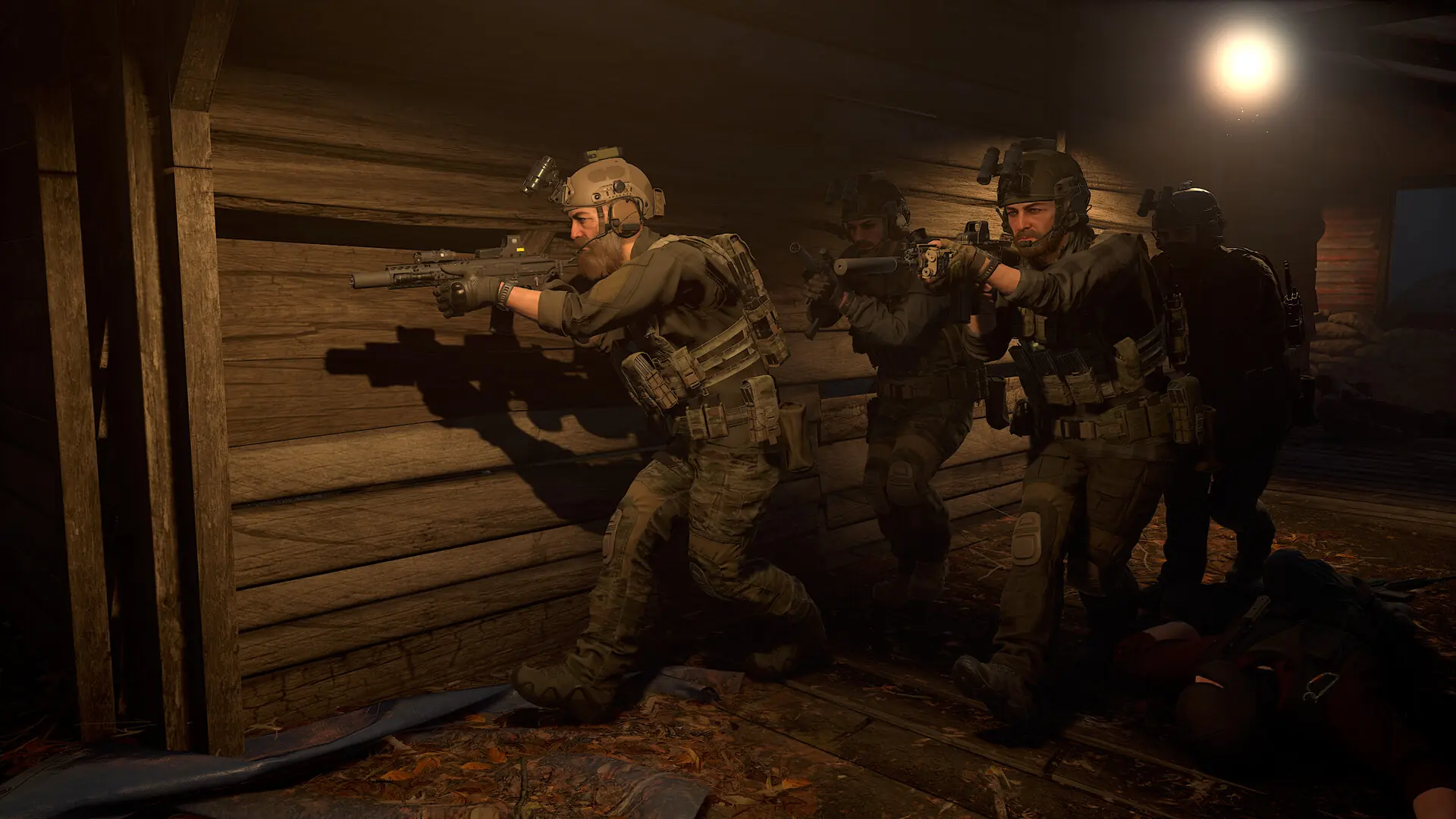
Your map list sets which maps and missions your GROUND BRANCH server plays and which ones players can vote for. A new Game Host Bros server starts with a rotation of Terrorist Hunt co-op missions across the stock maps, so it shows up in the server browser straight away.
Editing The Map List In-Game
The easiest way to build a map list is the in-game admin menu.
- 1Join your server as an admin.
- 2Press
F8to open the admin menu. - 3Go to the map list, then add, remove or reorder maps and missions.
Editing MapList.ini
- 1Log in to Bropanel and
Stopyour server. - 2In the sidebar, go to
Files. - 3Navigate to
/GroundBranch/ServerConfig/and openMapList.ini. - 4Add or remove
MapList=lines. Each line is one map and mission, optionally followed by settings:[/script/rbzookeeper.zkmaplist] MapList=/Game/GroundBranch/Maps/City/City?Mission=/Game/GroundBranch/Mission/City/City_TerroristHunt?opforcount=30?difficulty=2 MapList=/Game/GroundBranch/Maps/City/City?Mission=/Game/GroundBranch/Mission/City/City_IntelRetrieval MapList=/Game/GroundBranch/Maps/Depot/Depot?Mission=/Game/GroundBranch/Mission/Depot/Depot_TerroristHunt - 5Start your server.
Missions are named after the map and game mode, such as City_TerroristHunt, City_IntelRetrieval or City_Uplink. Settings go after the mission, each starting with ?. Common ones are opforcount (number of enemies, up to 50), difficulty (1 Untrained to 4 Veteran), roundtime (minutes) and timeofday (24-hour time, such as 0800).
Note
If you remove every map, your server adds the Terrorist Hunt missions back on its next start. Without a map list, GROUND BRANCH stays on a placeholder map and doesn't show in the server browser.