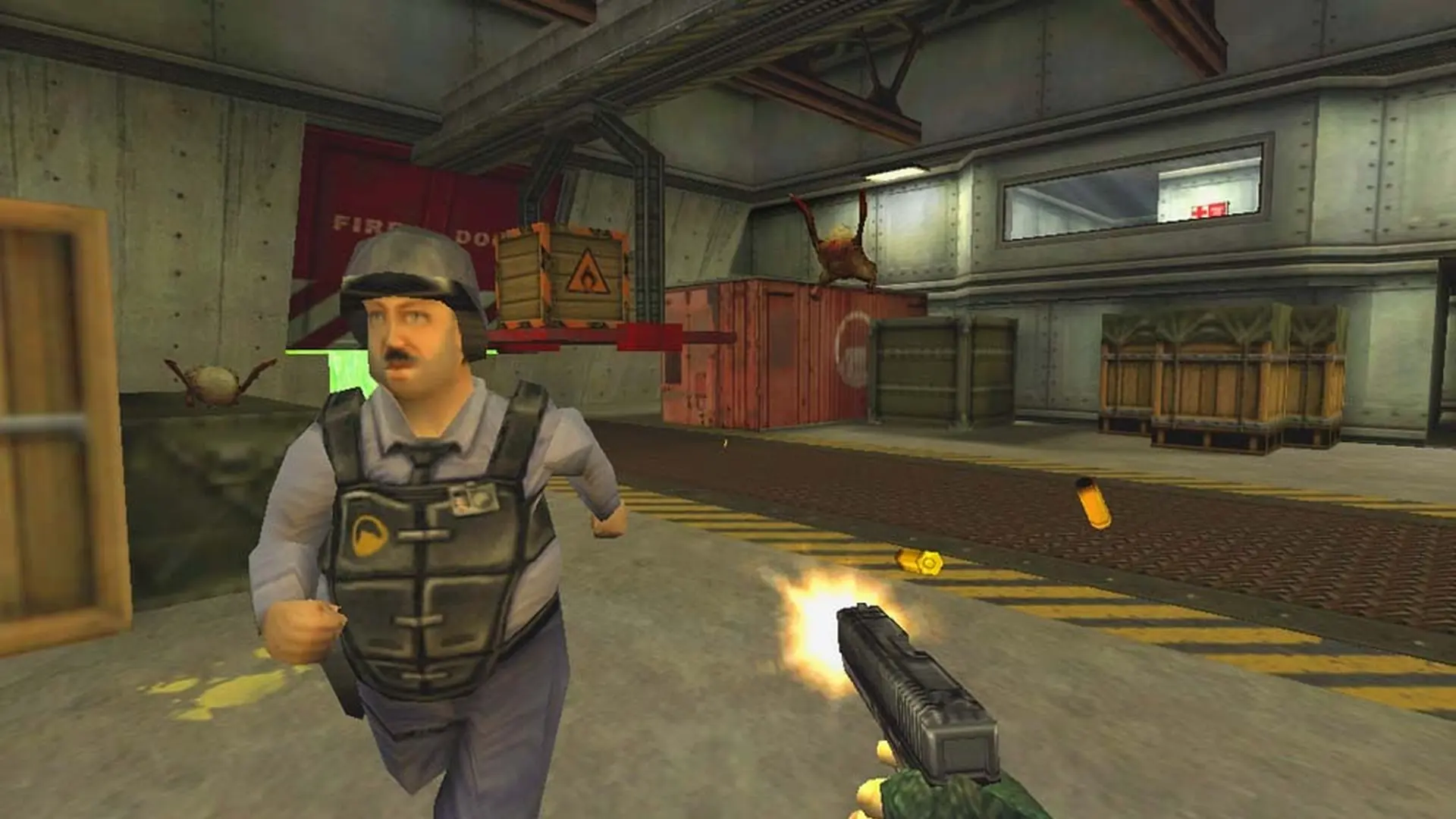
This is what you do if you need to change the map on your Half-Life: Opposing Force server.
Uploading Your Custom Map
Maps are commonly found from public FastDL repositories or sites such as GameBanana. Your server will need to be restarted so our FastDL system can automatically sync your added files. This is required as these files will not be served to connecting users until a sync is completed.
- Log in to Bropanel and select your Opposing Force server.
- Upload your map.bsp to
gearbox/maps. - Restart your server.
Changing Your Opposing Force Server Default Map
- Log in to Bropanel and select your Opposing Force server.
- In the sidebar, go to
Settings. - Find the
Default Mapsetting and enter your desired map. - Click
Save & Restartto apply your changes.