
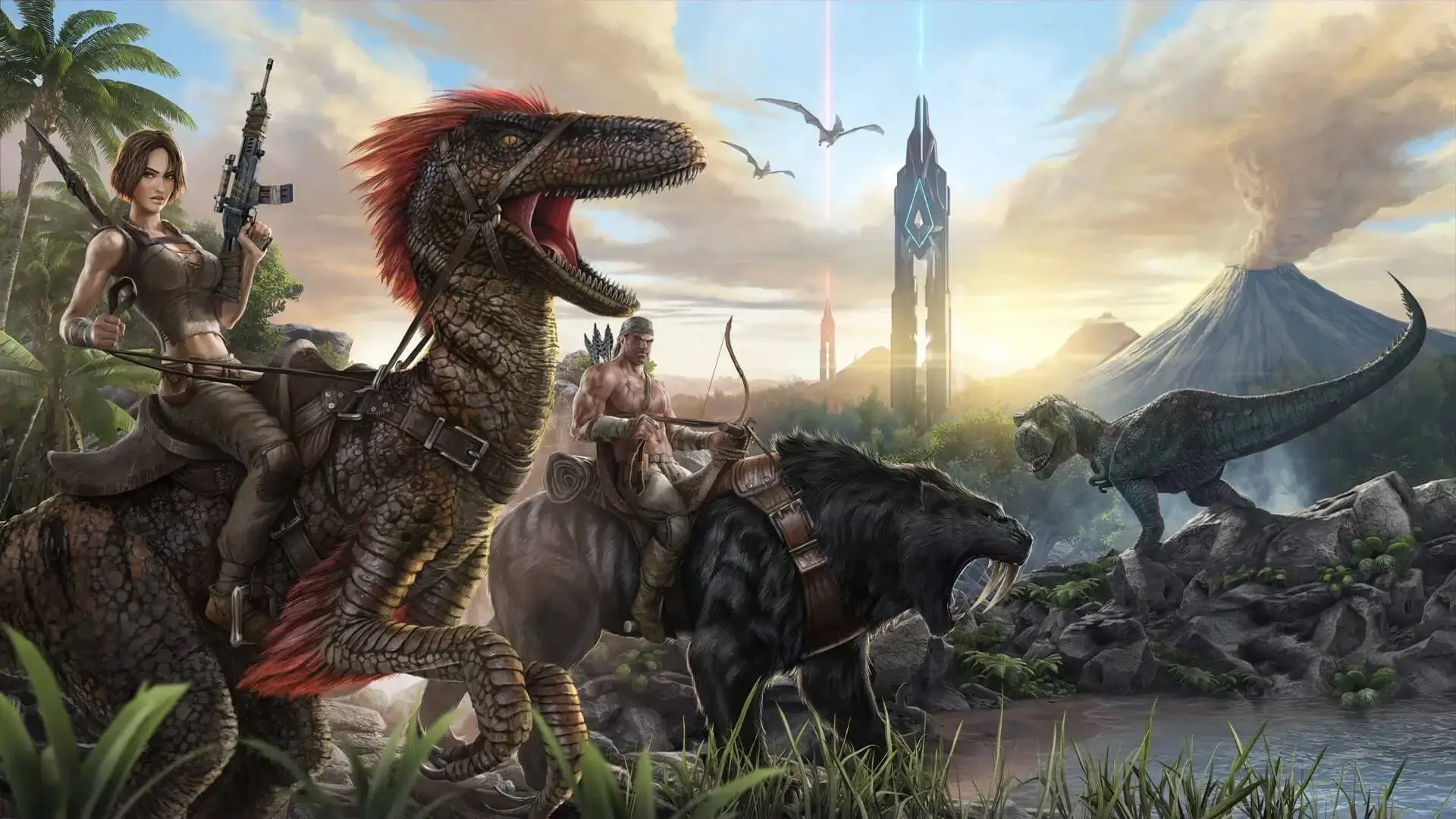
This is how to change the map on your Ark Survival Evolved server. This guide will walk you through all of the ARK Survival Evolved maps and how to select them, including DLC maps.
Danger
Like any major change, we recommend creating a backup before proceeding
Things to note:
-
Player data will reset by default. To keep your character, first connect to your server, then you must travel to an Obelisk (Tribute Terminal), where you will then be able to upload your character, creatures, and stash your items.
-
Upload your creatures to
Creaturesand your items toArk Data. -
Things such as saddles will need to be un-equipped and then uploaded to Ark Data. Uploading creatures will also remove them from your current map.
-
Upon changing map and loading in, click
Create Character → Download character. Your items and creatures can then be retrieved from an Obelisk on your new map.
Changing Map
Follow these steps to change the map on your ARK Survival Evolved server. Follow the above note if you're looking to continue with an existing character.
- 1Log in to Bropanel and select your server.
- 2In the sidebar, go to
Settings. - 3Find the
Server Mapsetting and enter the Server Map ID of your desired map, found below. - 4Click
Save & Restartto apply your changes.
Here are all of the current maps available in ARK Survival Evolved, DLC and Non-DLC included.
| Map Name | Server Map ID | Minimum Recommended RAM |
|---|---|---|
| Aberration | Aberration_P | 8 GB |
| Aquatica | Aquatica | 14 GB |
| Crystal Isles | CrystalIsles | 10 GB |
| Extinction | Extinction | 8 GB |
| Fjordur | Fjordur | 8 GB |
| Genesis: Part 1 | Genesis | 10 GB |
| Genesis: Part 2 | Gen2 | 16 GB |
| Lost Island | LostIsland | 10 GB |
| Ragnarok | Ragnarok | 8 GB |
| Scorched Earth | ScorchedEarth_P | 8 GB |
| The Center | TheCenter | 8 GB |
| The Island | TheIsland | 8 GB |
| Valguero | Valguero_P | 8 GB |