
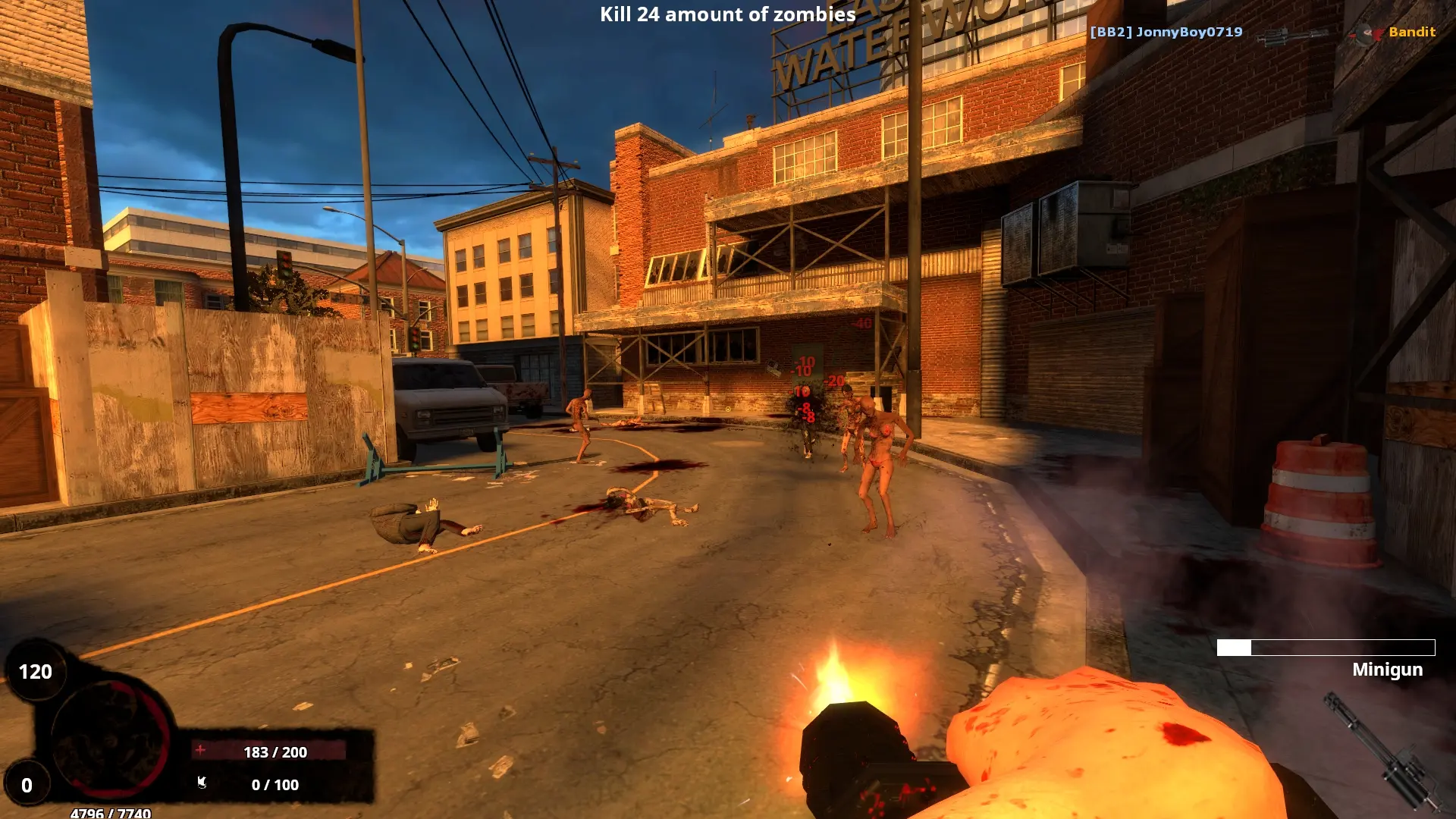
Here is how you can join your BrainBread 2 dedicated server. Your server runs the current Steam version of the game, so make sure Steam has updated BrainBread 2 before you join. No mods are needed; any custom maps download automatically when you connect.
Tip
BrainBread 2 is free on Steam for Windows and Linux.
Connecting From the Server Browser
- 1Open BrainBread 2 and click
Find Servers. - 2On the
Internettab, search for your server name. - 3Double-click your server to join. If you set a server password, enter it when asked.
Note
It can take a few minutes for a new server to appear in the server browser after it starts. Joining by IP always works.
Connecting With the IP Address
- 1Log in to Bropanel and select your BrainBread 2 server.
- 2Copy the server IP address and port from the
Overviewpage, for example123.45.67.89:27015. - 3Open BrainBread 2 and press the
~key to open the developer console. If nothing opens, turn on the developer console in the game's options first. - 4If your server has a password, type
password yourpasswordand pressEnter. - 5Type
connect 123.45.67.89:27015with your own IP and port, then pressEnter.