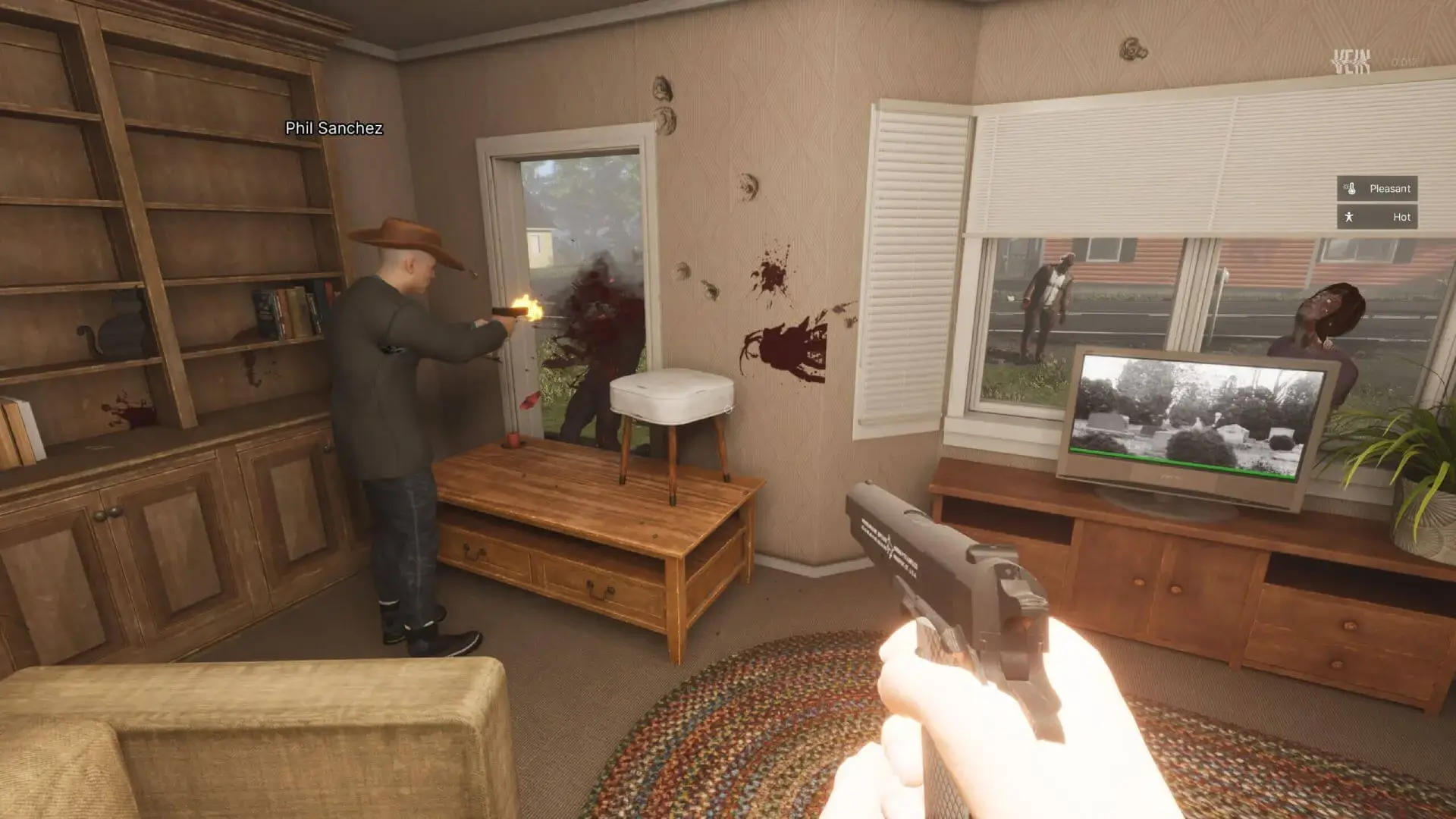
This guide will show you how to make your VEIN server private by disabling public server listing. When disabled, your server will not appear in the public server browser, and only players with the direct server IP address can connect.
Disabling Public Server Listing
- Log in to Bropanel and select your server.
- In the sidebar, go to
Settings. - Under
Basic, findPublic Serverand set it toFalse. - Click
Save & Restartto apply your changes.
Your server will no longer appear in the public server browser. Players will need to use the direct IP connection method to join.
Direct Connecting To Your Server Recommended
- Log in to Bropanel and select your VEIN server.
- Copy your server IP address from the
Overviewpage. - Open VEIN, and click
Join Multiplayer. - Click
Direct Connect. - Paste your server IP address and then click connect.
Using The In-Game Console (Before Version 0.023)
To connect to your private server on older VEIN versions before the release of 0.023, players must use this direct IP connection method.
- Log in to Bropanel.
- Copy the server IP address from the
Overviewpage. - Open VEIN and press
~on your keyboard to open the console. - Enter
connect YourServerIP:PORT, add?password=yourpasswordif you have a server password set.
For example:
- No Password
connect 168.59.45.100:27030
- Password Protected
connect 168.59.45.100:27030?password=Password123