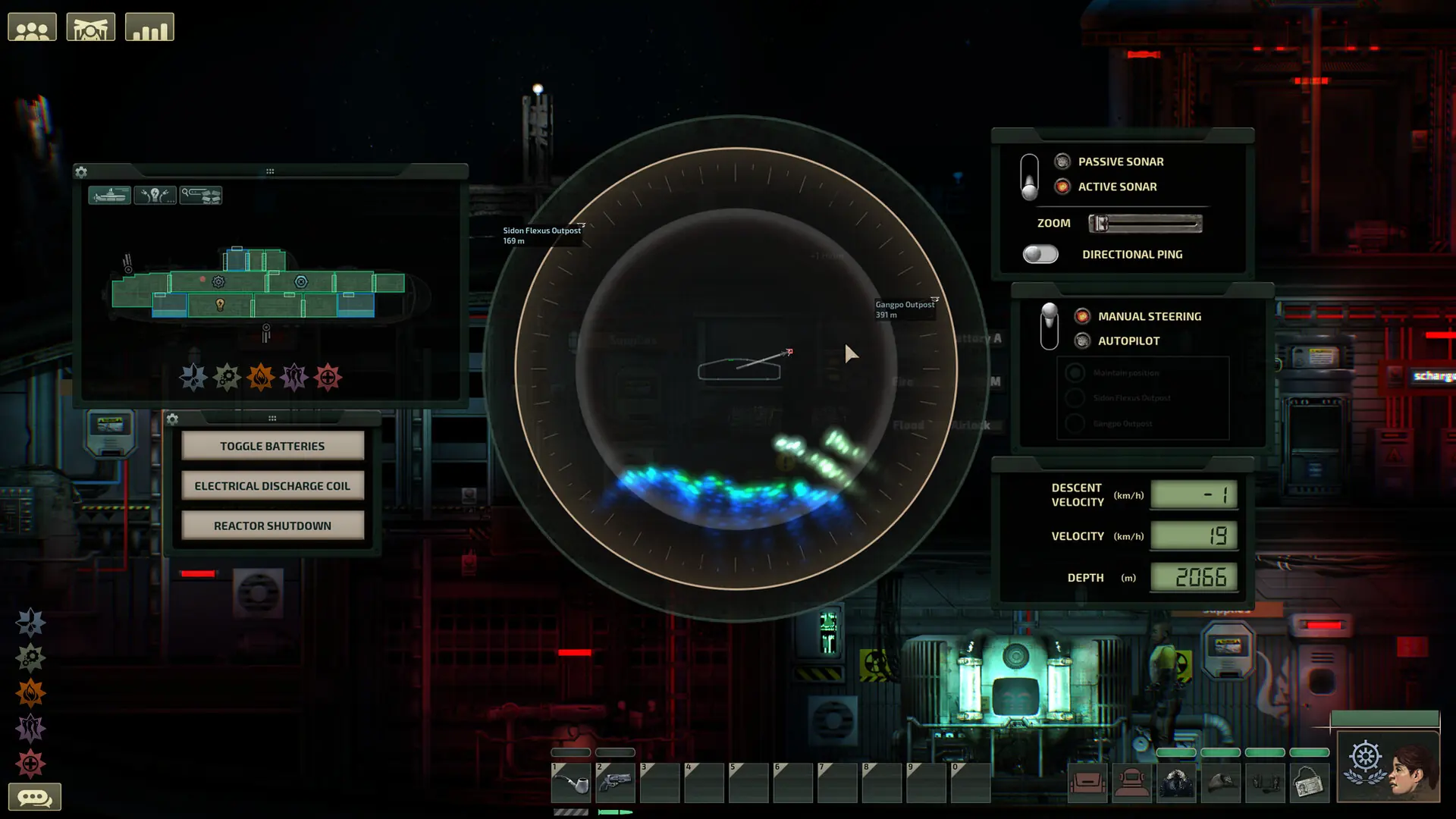
If you want to tailor your Barotrauma experience beyond the default game settings, adding mods is the perfect solution. This guide will walk you through how to install and enable mods on your Barotrauma Server.
Note
Steam Workshop items are downloaded when the server starts, so changes apply after saving and restarting your server.
Caution
Please make sure to also add ALL dependencies each mod lists on its Workshop page, otherwise your server will fail to load the mod.
Using the Steam Workshop Installer Recommended
The easiest way to install mods is directly through the panel.
- 1Log in to Bropanel and select your Barotrauma server.
- 2In the sidebar, go to
Modsand open theBrowsetab. - 3Search for the mod you want and click
Add. - 4Click
Save & restart.
Installing Mods Using Workshop IDs
As an alternative, you can install mods by pasting their Workshop IDs directly into your server's Settings.
You will need to know how to get a Workshop ID for each mod you want to install. You can view all the Barotrauma mods here.
Once you find the mod you want, you need to copy the URL. Let's use this URL for example: https://steamcommunity.com/sharedfiles/filedetails/?id=3190189044. The Workshop ID is the numbers at the end of the URL; in this case, the Workshop ID is 3190189044.
- 1
Log in to Bropanel and select your Barotrauma server.
- 2
In the sidebar, go to
Settings. - 3
Under
Modding, findWorkshop Modsand paste the Workshop ID of the mod you'd like to install. You can also add multiple mods by separating them with a comma.3190189044,2936760984- To change the mod load order, simply rearrange them in the list and restart your server. If a mod's Workshop page says it must load after another mod, place it further down the list.
- 4
Click
Save & Restartto apply your changes.
The mods will automatically download, stay up-to-date and enable once your server starts.
Manually Installing Mods
You can also upload mods from your PC. You will need the files and the folder name for each mod you want to install.
Once you find the mod you want, click Subscribe, then launch Barotrauma once so it downloads. Subscribed mods are stored on your PC in folders named after their Workshop ID, so the example mod's folder is 3190189044.
- 1Press
Windows Key + Rand paste this:%LOCALAPPDATA%\Daedalic Entertainment GmbH\Barotrauma\WorkshopMods\Installed - 2Select the mod folders you want and compress them into a
.zipfile. - 3Note down each folder name. These are the numbers you'll need later.
- 1Log in to Bropanel and
Stopyour server. - 2In the sidebar, go to
Files. - 3Navigate to the
LocalModsfolder. - 5Go back to the root folder in
Filesand openconfig_player.xml, then find the<contentpackages>section. - 6Add a line inside the
<regularpackages>list for each mod you uploaded, replacing the number with your mod's folder name:<package path="LocalMods/3190189044/filelist.xml" /> - 7Click save and start your server.
The example below uses the mods Neurotrauma and Real Sonar.
<contentpackages>
  <!--Vanilla-->
  <corepackage path="Content/ContentPackages/Vanilla.xml" />
  <regularpackages>
    <package path="LocalMods/3190189044/filelist.xml" />
    <package path="LocalMods/2936760984/filelist.xml" />
    ...
  </regularpackages>
</contentpackages>
Note
Always add a separate <package> line for each mod you're installing. Load order matters too, so if a mod's Workshop page says it must load after another mod, place it further down the list.