
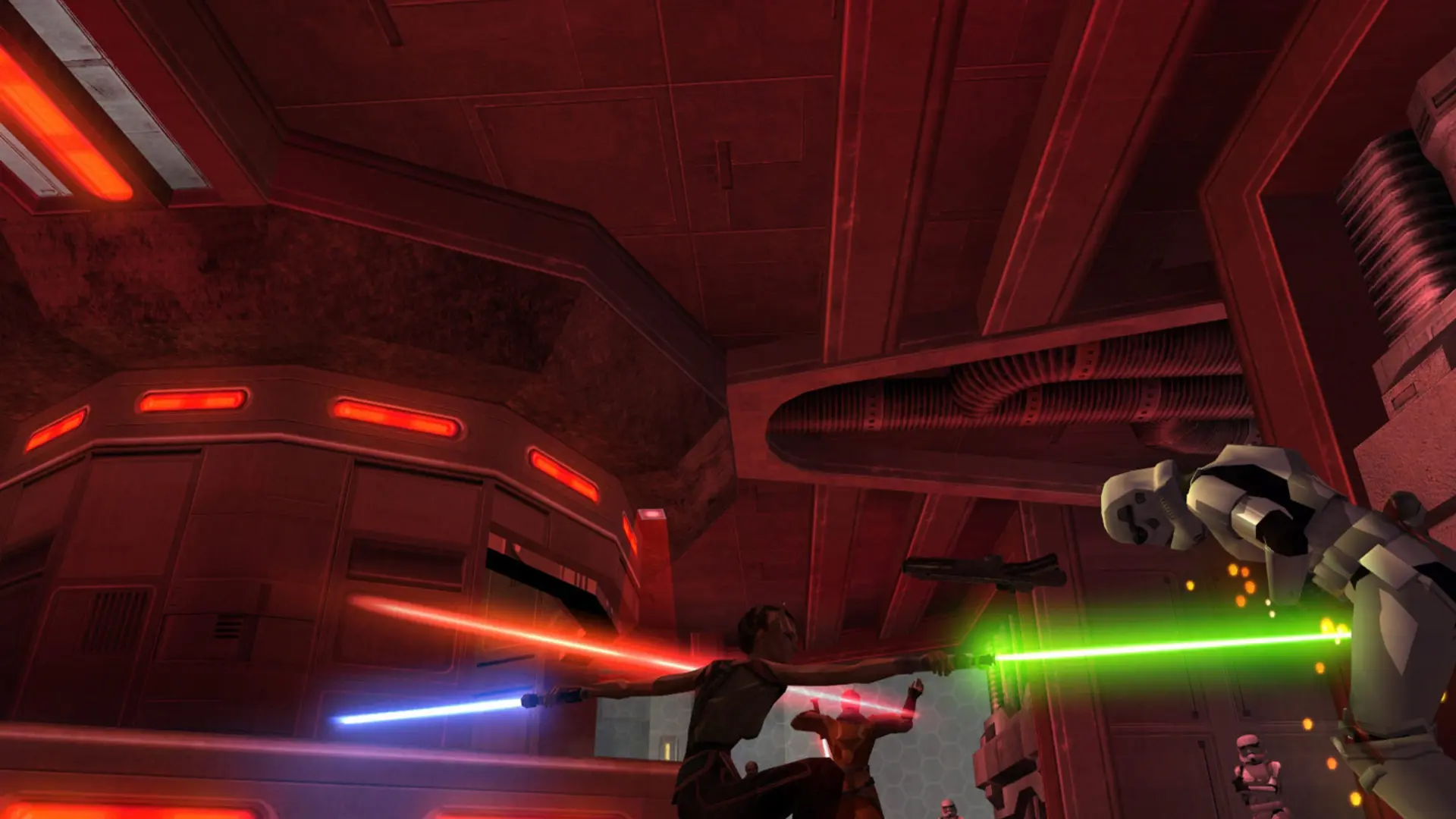
Here is how you can join your Jedi Academy dedicated server. Players need the PC version of Jedi Academy (Steam, GOG or the CD, patched to 1.01) or OpenJK. If your server runs Movie Battles II, players also need Movie Battles II installed with its launcher from moviebattles.org.
Connecting From the Server Browser
- 1Start Jedi Academy multiplayer, or the Movie Battles II launcher if your server runs Movie Battles II.
- 2Click
Play, thenJoin Game. - 3Set the source to
Internet, clickRefreshand find your server name in the list. - 4Select your server and click
Join. If you set a server password, enter it when asked.
Note
It can take a few minutes for a new server to appear in the server browser after it starts. Joining by IP always works.
Connecting With the IP Address
- 1Log in to Bropanel and select your Jedi Academy server.
- 2Copy the server IP address and port from the
Overviewpage, for example123.45.67.89:29070. - 3Start the game and press
Shift+~to open the console. - 4Type
/connect 123.45.67.89:29070with your own IP and port, then pressEnter.
If your server has a password, type /password yourpassword in the console before you connect.