
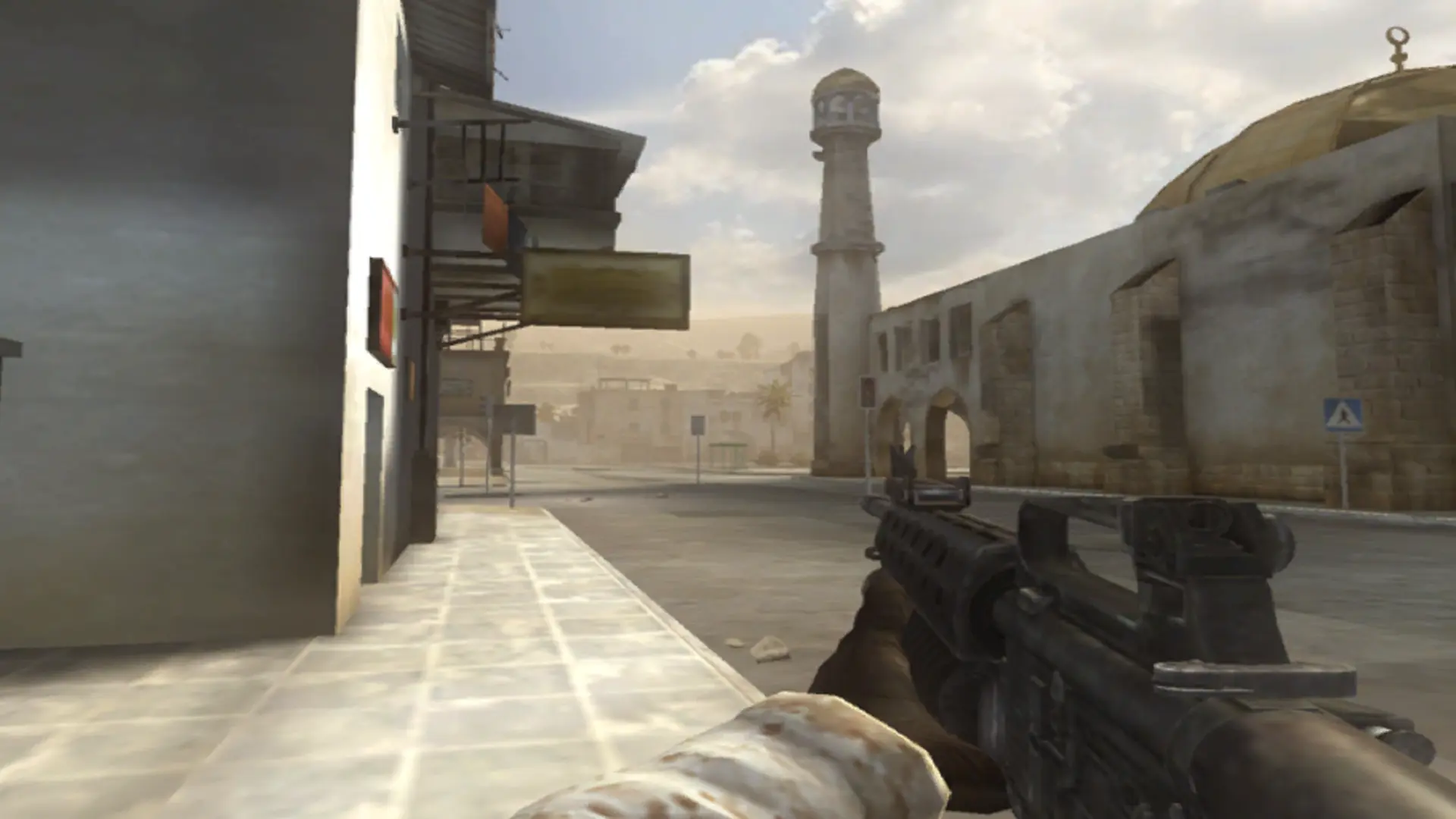
Here is how you can join your Battlefield 2 dedicated server. GameSpy, which ran the original server list and player accounts, shut down in 2014. BF2Hub replaced it, and your server reports to BF2Hub.
| What you need | Why |
|---|---|
| Battlefield 2 patched to 1.5 | Your server runs 1.5, and older versions can't join |
| The free BF2Hub client | It brings back the server list and online accounts |
| Special Forces installed | Only if your server runs Special Forces |
Connecting From the Server List
- 1Install the BF2Hub client, start Battlefield 2 and log in with your BF2Hub account, or create one from the login screen.
- 2Go to
Multiplayer>Join Internet. - 3Find your server name in the list. Use the filters or sort by name if the list is long.
- 4Double-click your server to join. If you set a server password, enter it when asked.
Note
It can take a few minutes for a new server to appear in the list after it starts.
Connecting With the IP Address
- 1Log in to Bropanel and select your Battlefield 2 server.
- 2Copy the server IP address and port from the
Overviewpage, for example123.45.67.89:16567. - 3Right-click your Battlefield 2 shortcut, choose
Properties, and add this to the end ofTarget, with your own IP and port:+joinServer 123.45.67.89 +port 16567 - 4Start the game from that shortcut and log in. It connects to your server straight away.
For a Special Forces server, also add +modPath mods/xpack to the shortcut.