
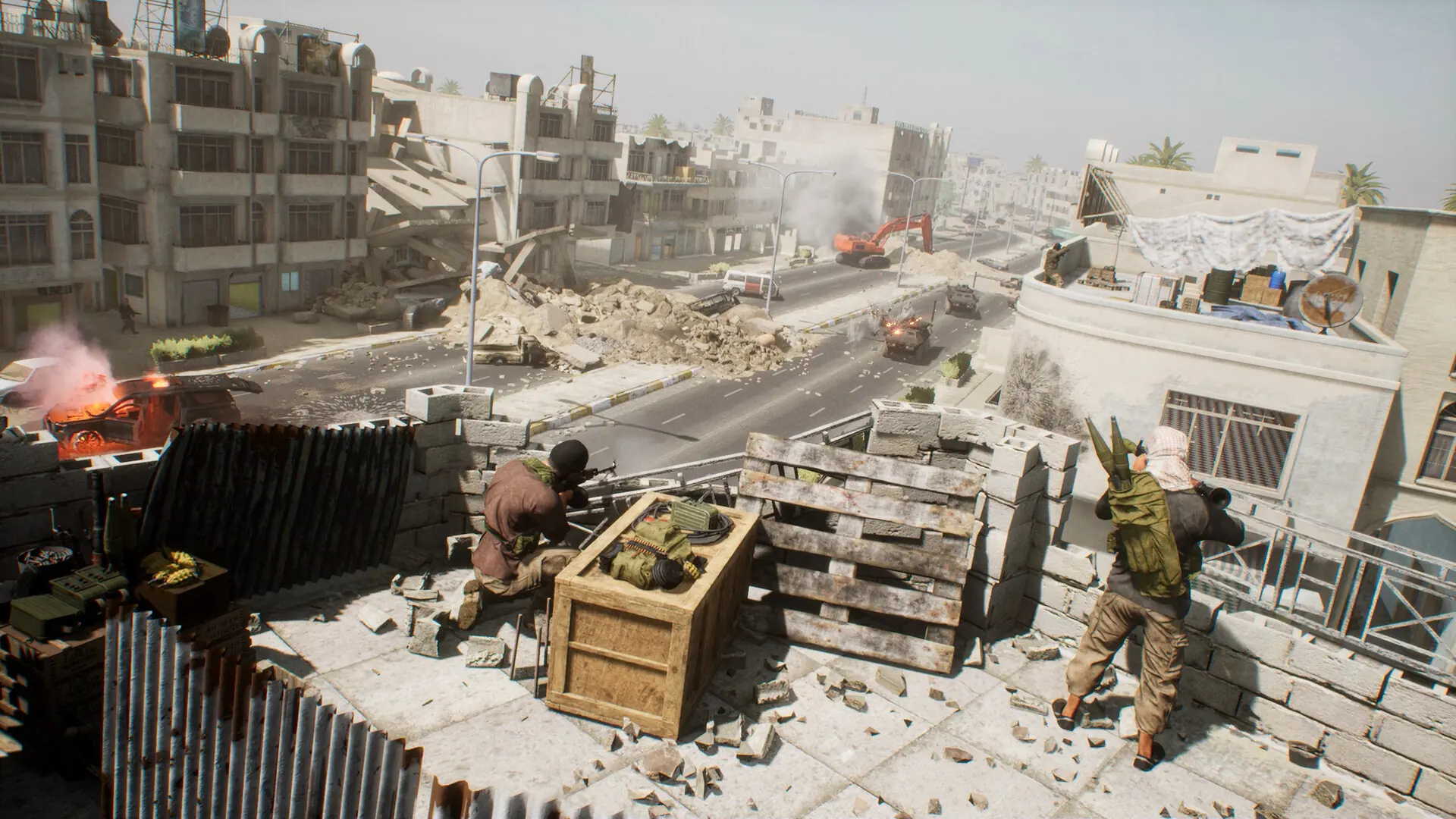
A server demo records a match on your Squad server into a file that can be opened in Squad on your PC, which is handy for reviewing a match or checking a report about a player.
Recording A Demo
- 1Log in to Bropanel and select your server.
- 2In the sidebar, go to
Console. - 3Type
AdminDemoRec MatchNameand pressEnterto start recording. - 4When you're done, type
AdminDemoStopand pressEnterto save the demo.
Demos are saved as .replay files in SquadGame/Saved/Demos/. To download one, go to Files in the sidebar and navigate to that folder.
Admins with the demos permission can run the same commands from the in-game console.